

Overview
Collections/Resources -> Overview
Back
Click to enlarge.
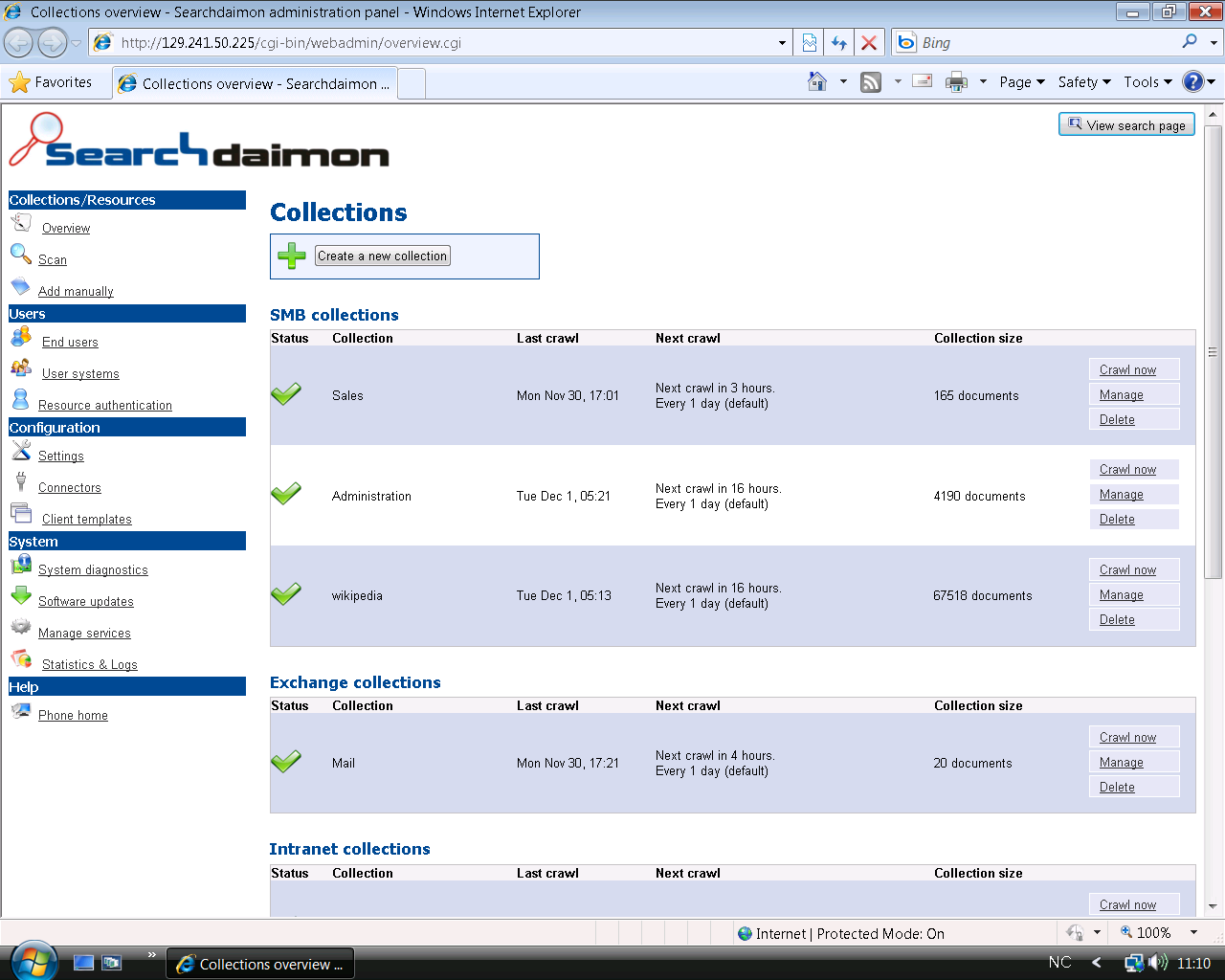
Overview is where you check status and configure your collections. Collections are grouped by type of crawler (SMB, Exchange etc.).

To recrawl a collection, select Crawl now. The collection will immediately start to recrawl if the Collection manager is allowed to crawl in this time interval (see Collection manager). To configure the collection, select Manage. You can also see some statistics there. Test-collections are managed from Crawler extensions (under Connectors). Remote installed crawlers generate Pushed collections, and should be managed from the remote host.
Manage
Edit collection
Click to enlarge.
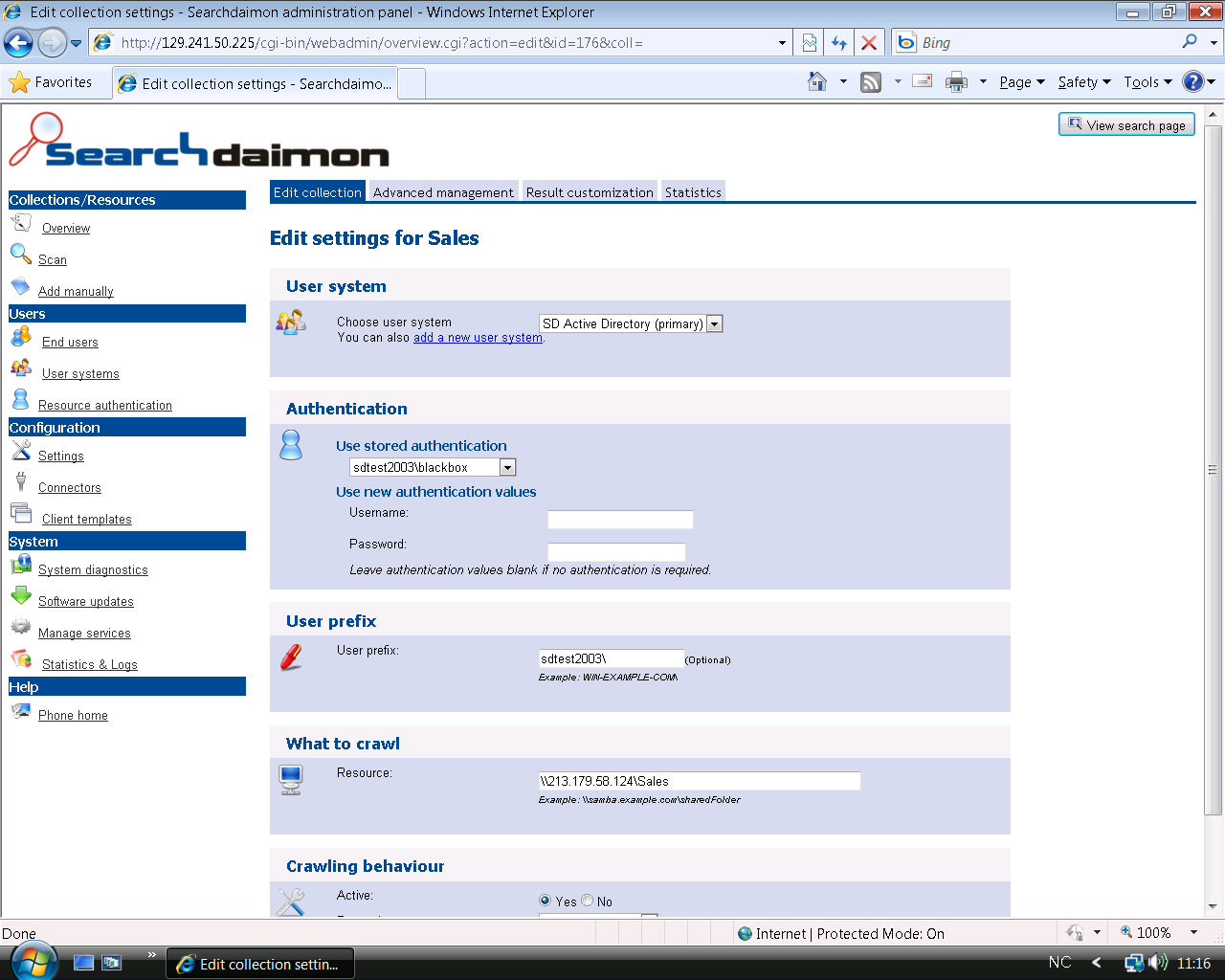
In the Edit collection tab you can edit your collection settings in the same way you configured it when creating the collection. Details here.
Advanced management
Click to enlarge.
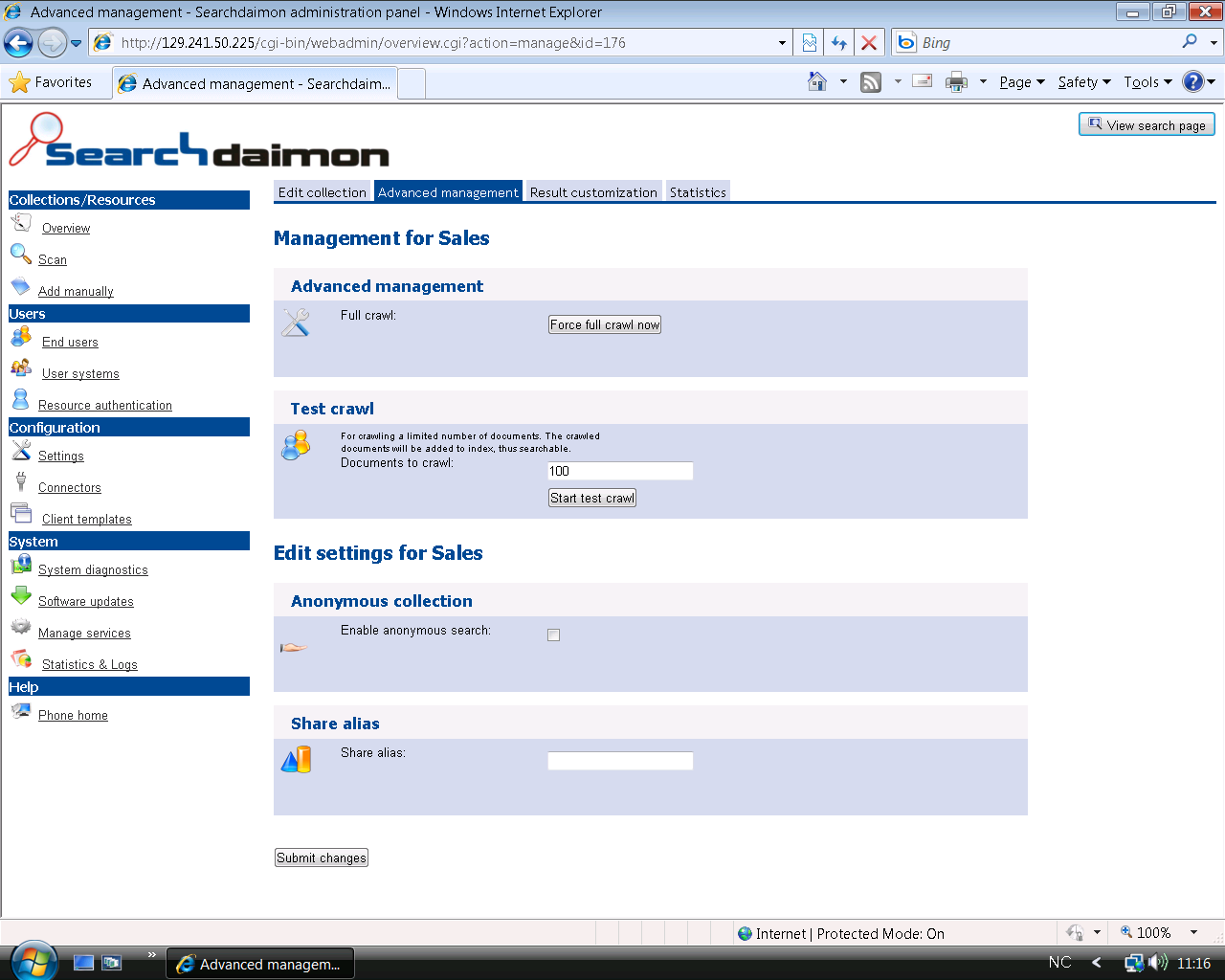
Under Advanced management you'll find the following functions:
- Force full crawl now Deletes downloaded content, and starts all over again.
- Test crawl You can choose to only download the first documents. This is useful when testing a crawler without running a full crawl.
-
Enable anonymous search Enables search for everyone. Visit
http://<your Searchdaimon ES address>/public - Share alias For Windows Shared Folders. Display this alias in the address-field of the documents instead of an IP-address or a hostname.
Result customization
Click to enlarge.
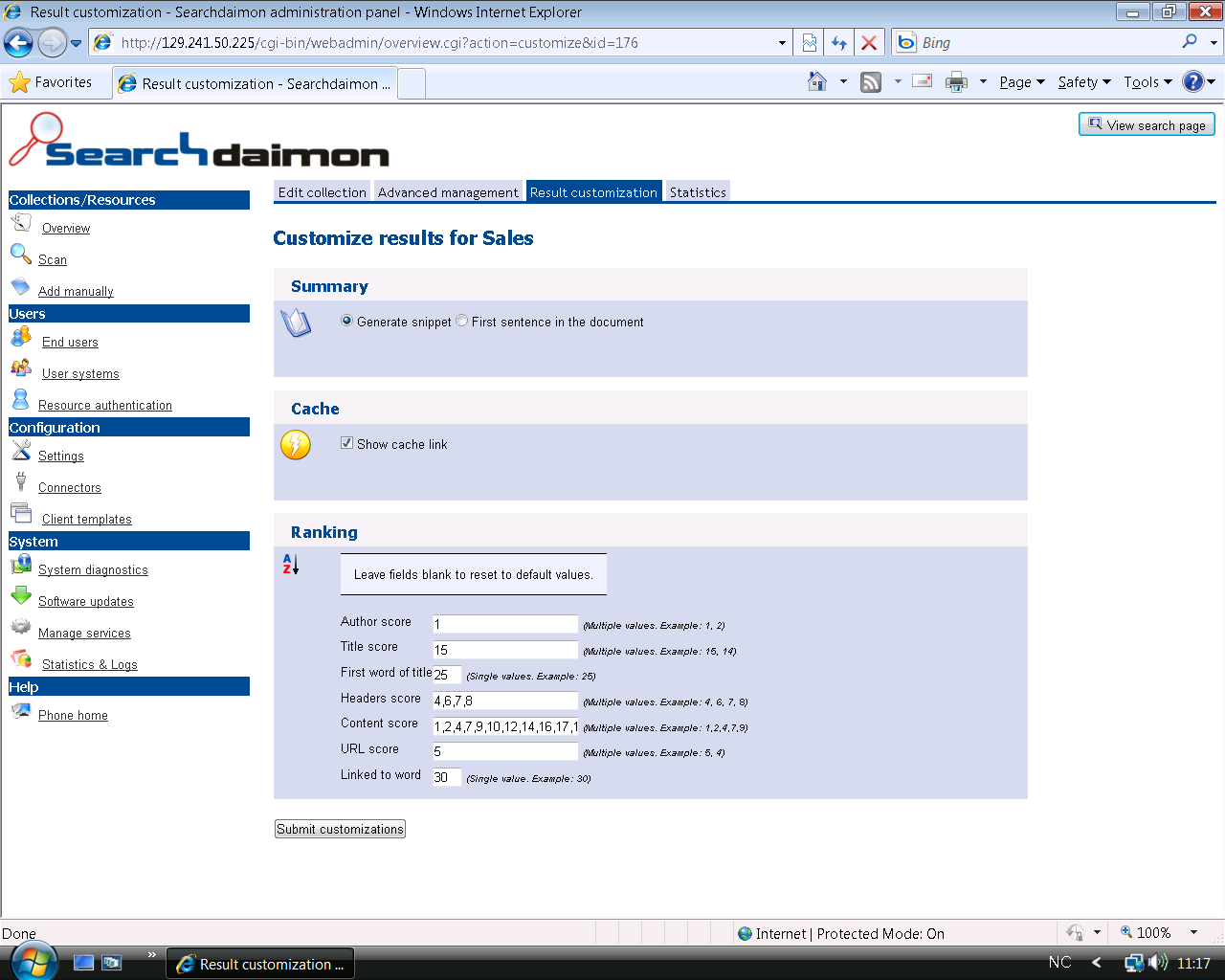
- Summary The short summary presented for each document in the search results is called a snippet. When "Generate snippet" is selected, our software extracts an abstract of the text according to the query.
- Cache Choose if the results should show a link to our cached version of the document.
- Ranking (advanced) It is possible to experiement how a document is ranked by adjusting scores according to where in the document query-words are matched.
Statistics
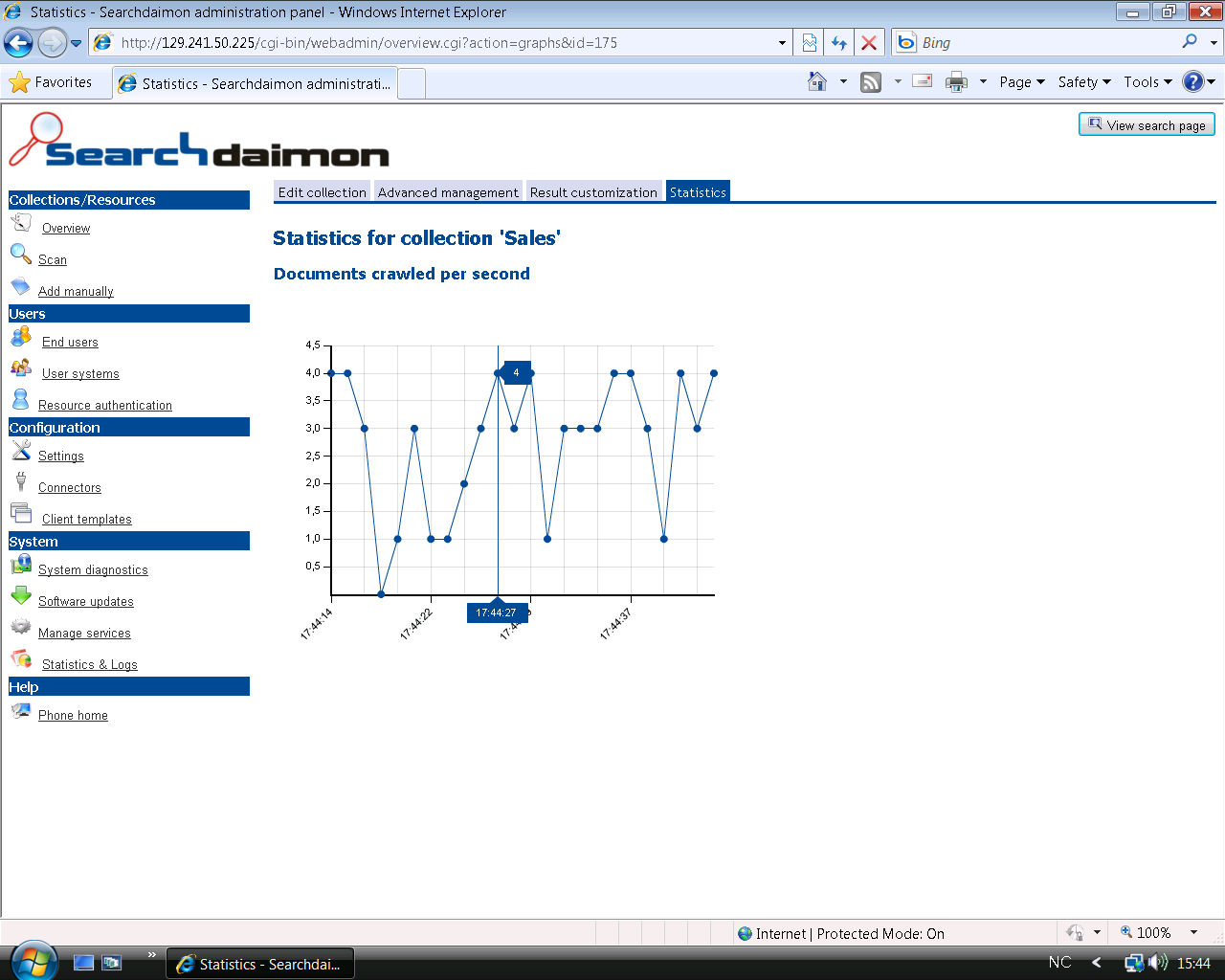
Click to enlarge.
Shows how many documents are crawled every second.
Scan
Collections/Resources -> Scan
Back
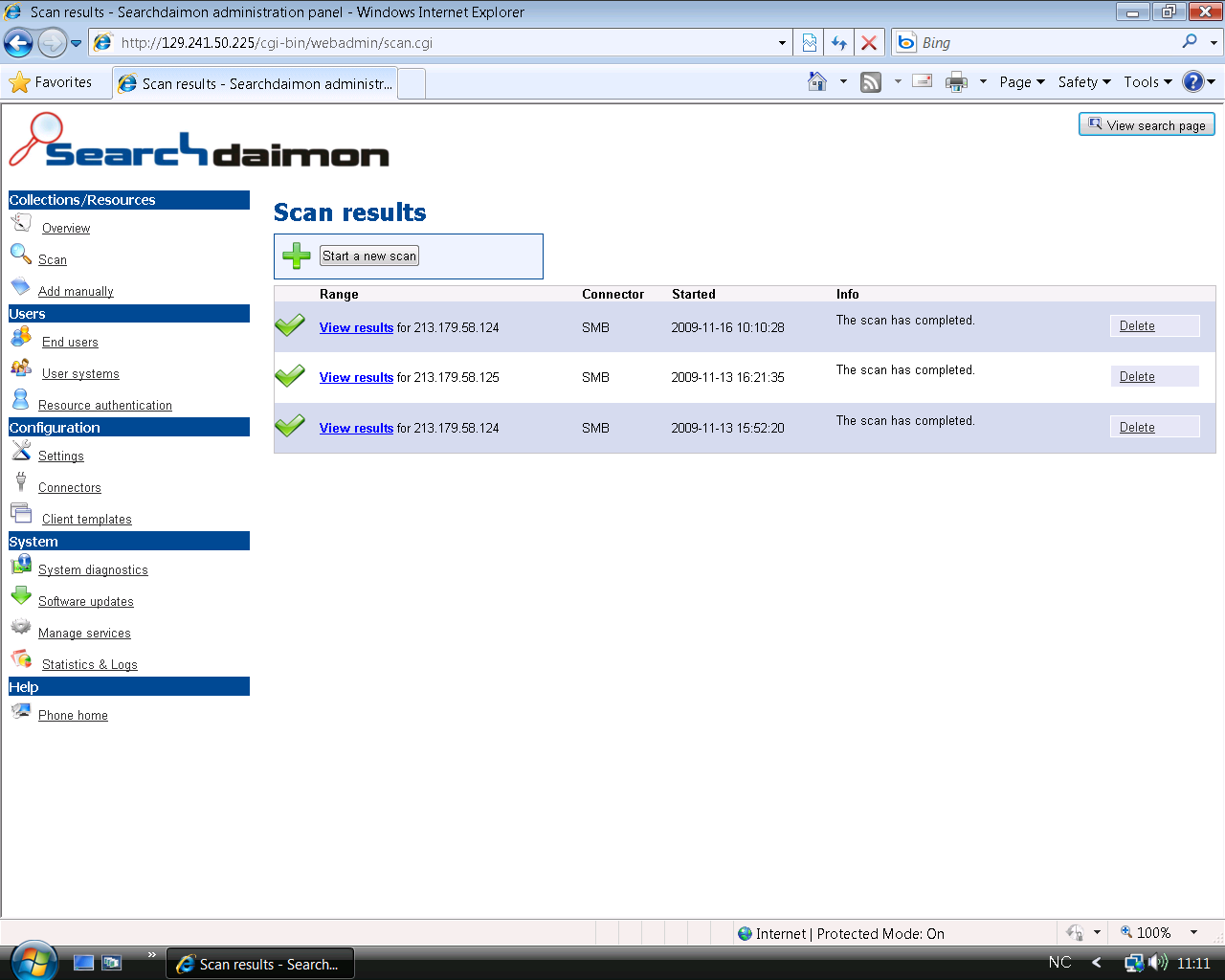
Click to enlarge.

SMB supports scanning for Windows shared folders. This can be a good alternative if you don' want to add your shares manually.
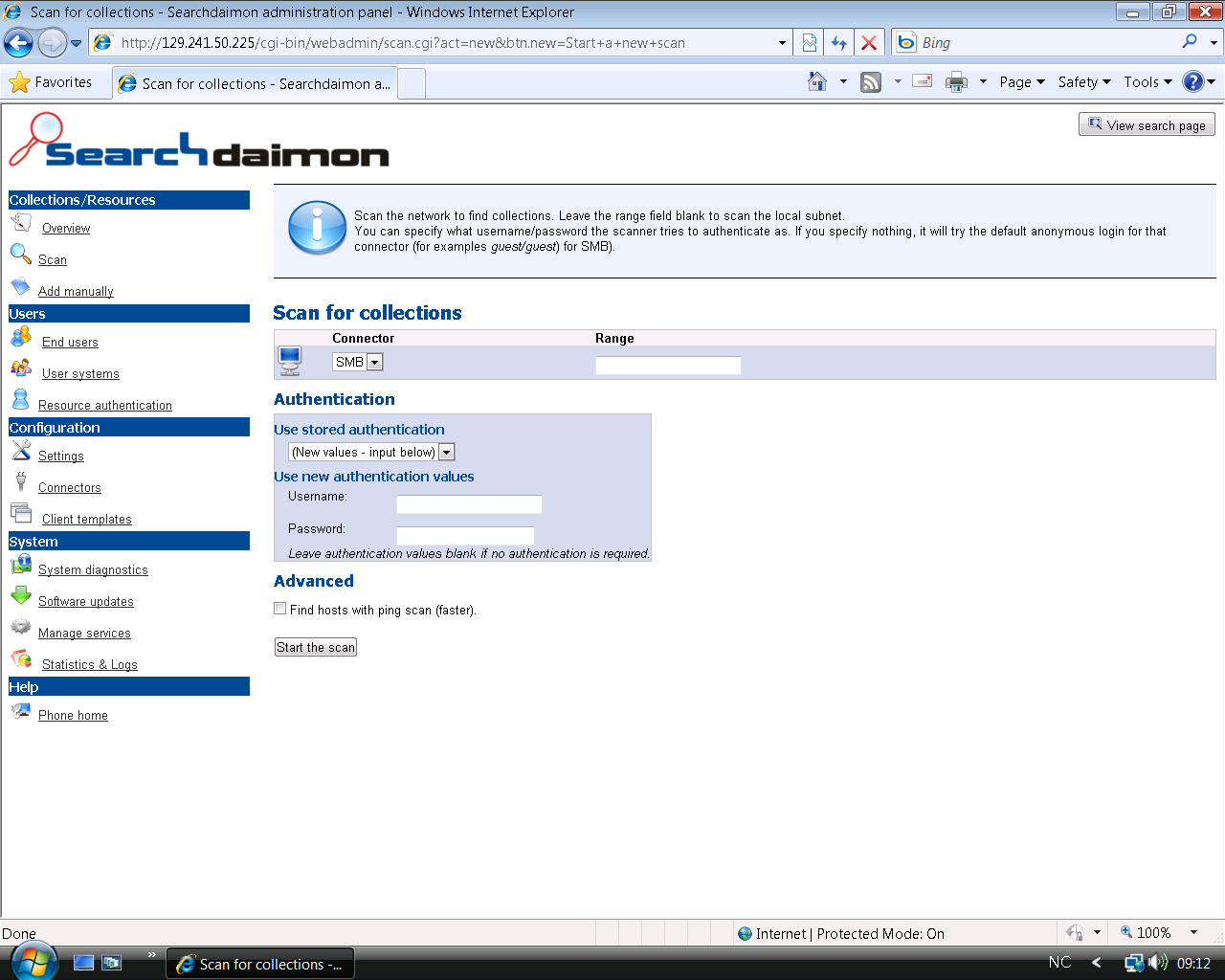
Click to enlarge.
Fill out the IP address on the server to be scanned, or a range to scan more than one computer (ex: "192.168.1.0/24"). Ping-scanning is much faster if you are scanning a network, but some computers may not answer these types of ping requests.
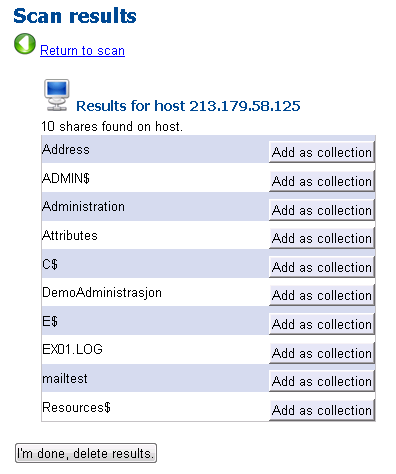
After the scan has completed, it's easy to add new collections.
Add manually
Collections/Resources -> Add manually
Back
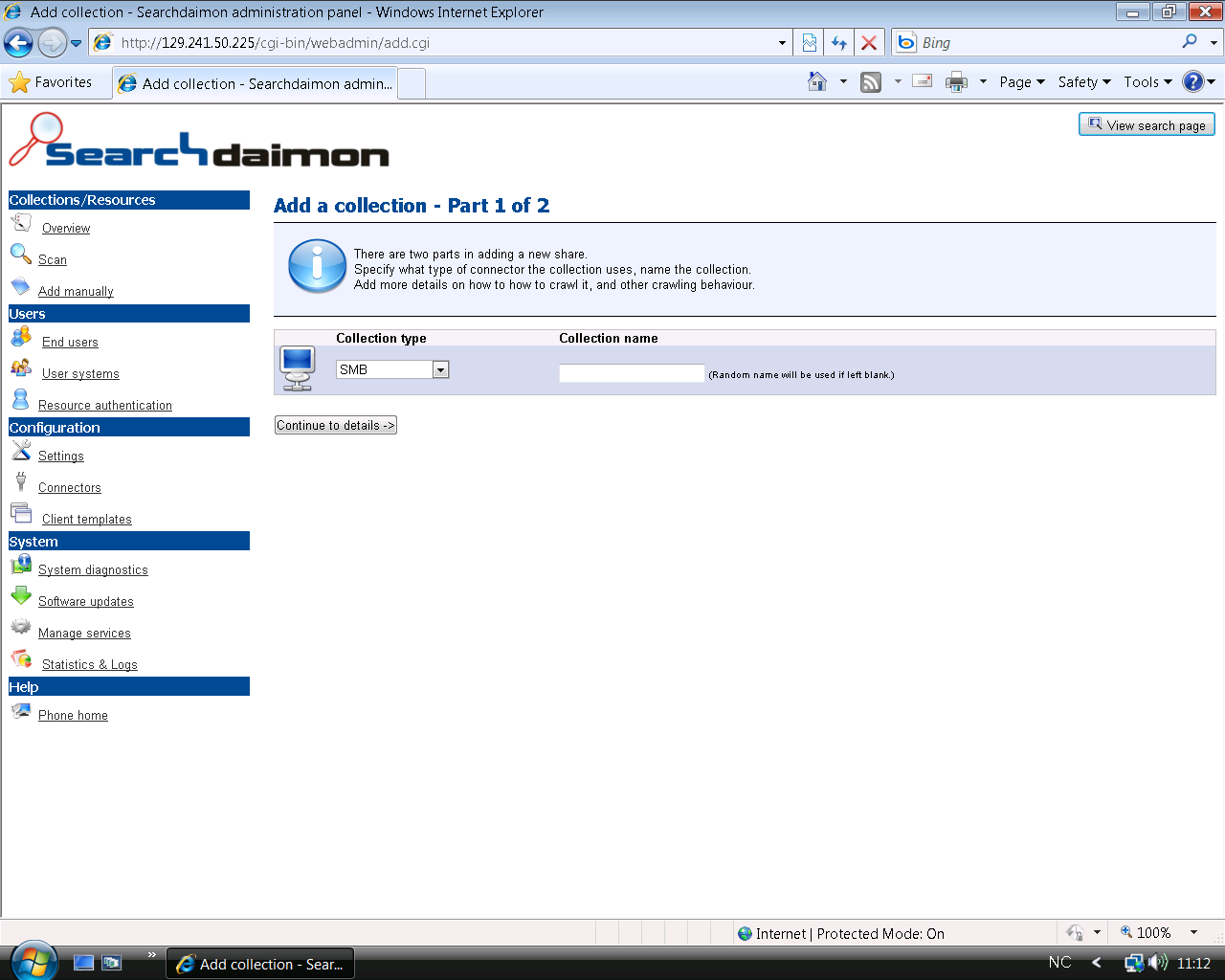
Click to enlarge.
Add new collection.

When adding a new collection, you need to specify which crawler to use. Crawlers included in the standard version:
- SMB Microsofts file sharing protocol. Use this for shared folders in Windows.
- Exchange Microsoft Exchange e-mail server.
- Intranet Web servers located on the intranet.
- SuperOffice SuperOffice CRM.
- ExchangePublic Public Folders in Microsoft Exchange.
- Sharepoint Microsoft Sharepoint.
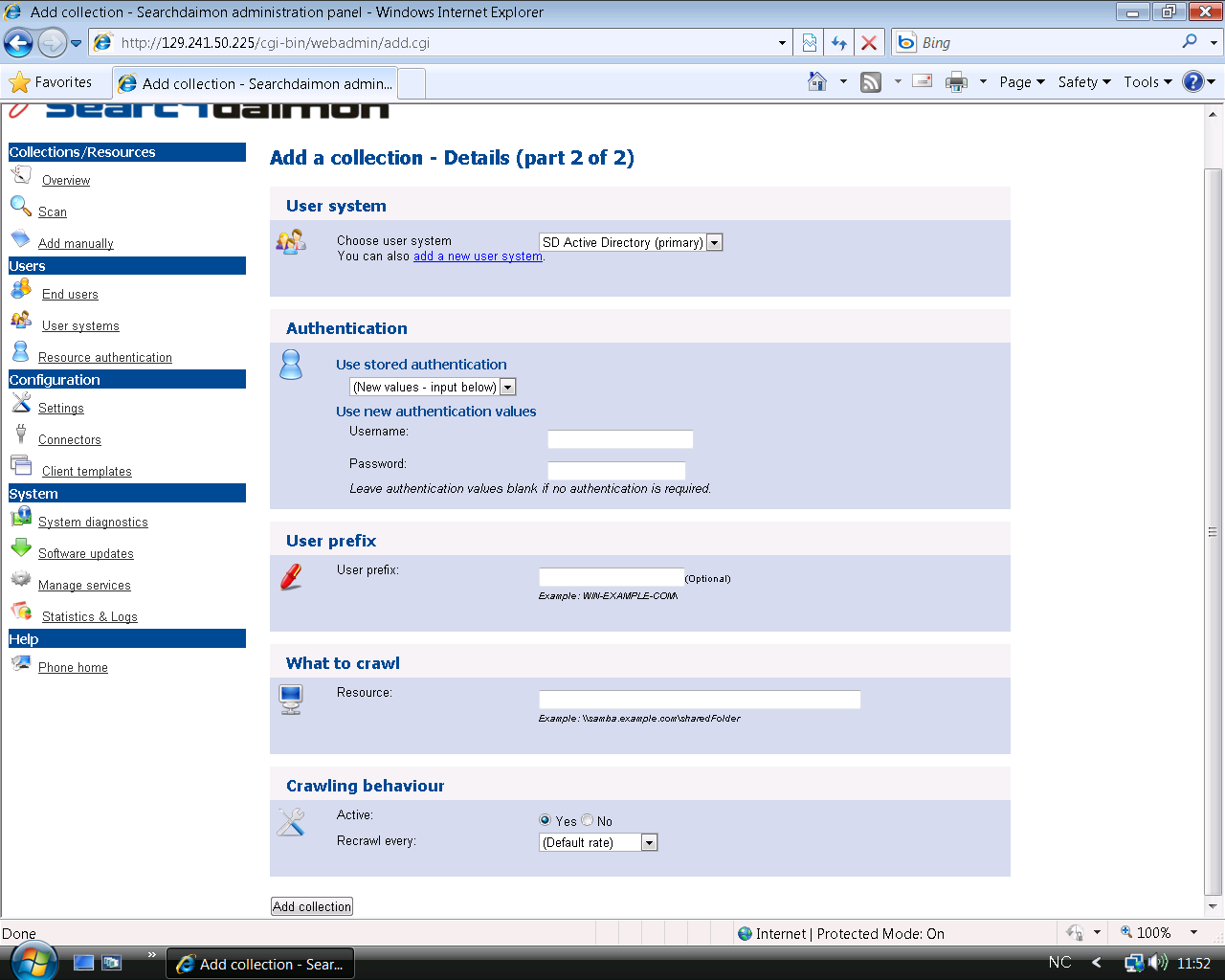
Click to enlarge.
Specifying detailed information
The details needed can vary between crawlers. For instance the SMB crawler:
- User system The crawler fetches data about user access, and has to know what user system the collection belongs to. For most companies, this will be Microsoft Active Directory. Some systems, like SuperOffice, use their own user systems. In such cases, the user system has to be added before the collection, under User systems.
- Authentication Specify username and password for a user who has access to read all documents you want to search.
- User prefix Sometimes an installation of the system we are connecting to needs us to add a prefix to our usernames. For instance a domain name: "DOMAIN\".
- What to crawl Address of the resource. The format varies between crawlers.
- Crawling behaviour Specify how often we should look for document updates. For some crawlers, every file has to be checked. You should therefore avoid crawling too often. Once per day is usually good.
When everything is filled in, click "Add collection". The collection will now appear in Overview, and will immediately start to fetch documents if we are allowed to crawl at this time of day (see Collection manager).
Tips: If your active directory is sdtest.local and your username is sdes most servers need your username to be sdtest\sdes . Mark thet it is "\", not "/".
End users
Users -> End users
Back
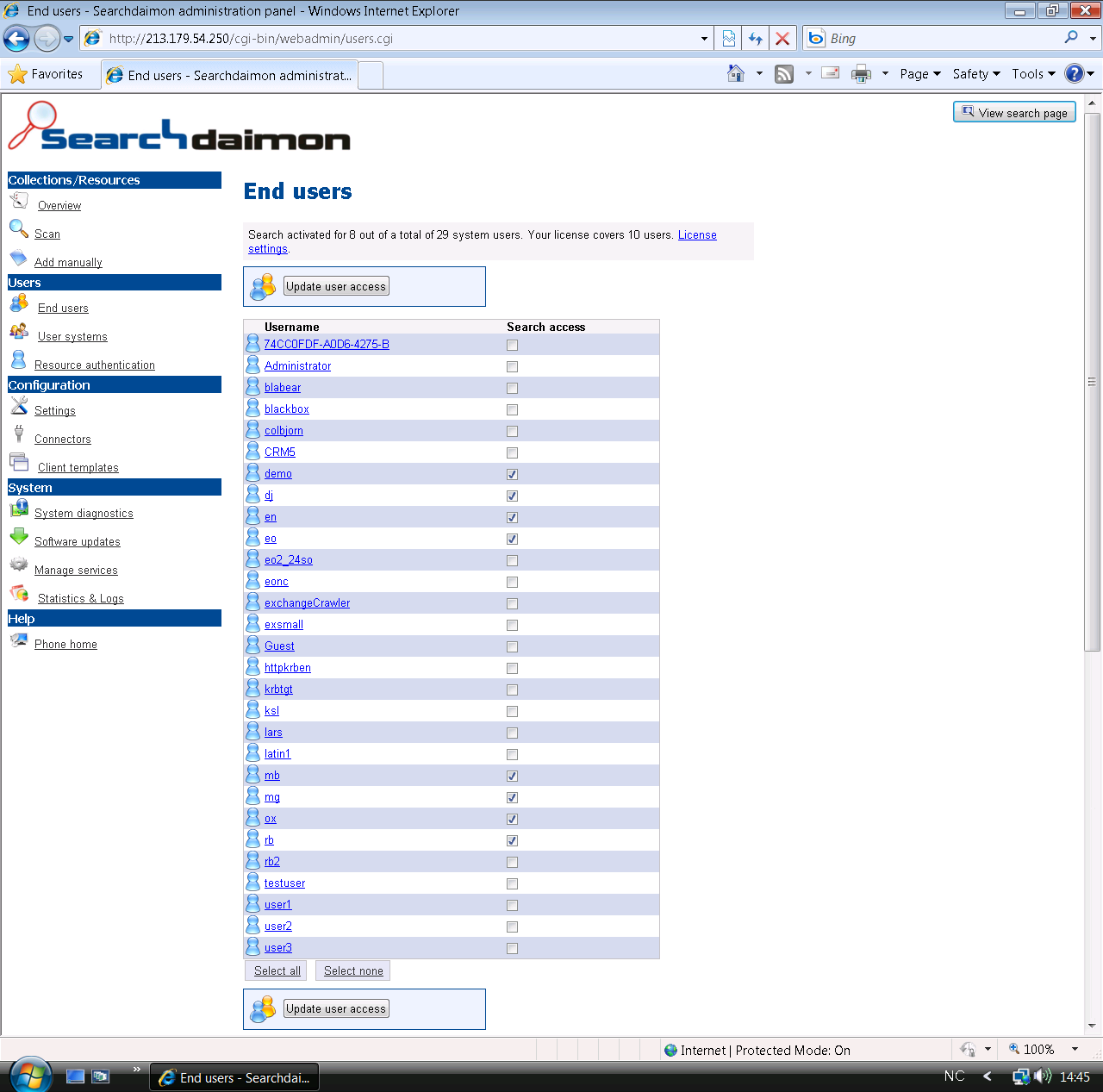
Click to enlarge.
To make it possible to search at all, you have to active those users who should have access. Under End users, all users in the primary user system are listed, so it will be easy to click on those users you want to activate. Just remember to click "Update user access" when done.
User systems
Users -> User systems
Back
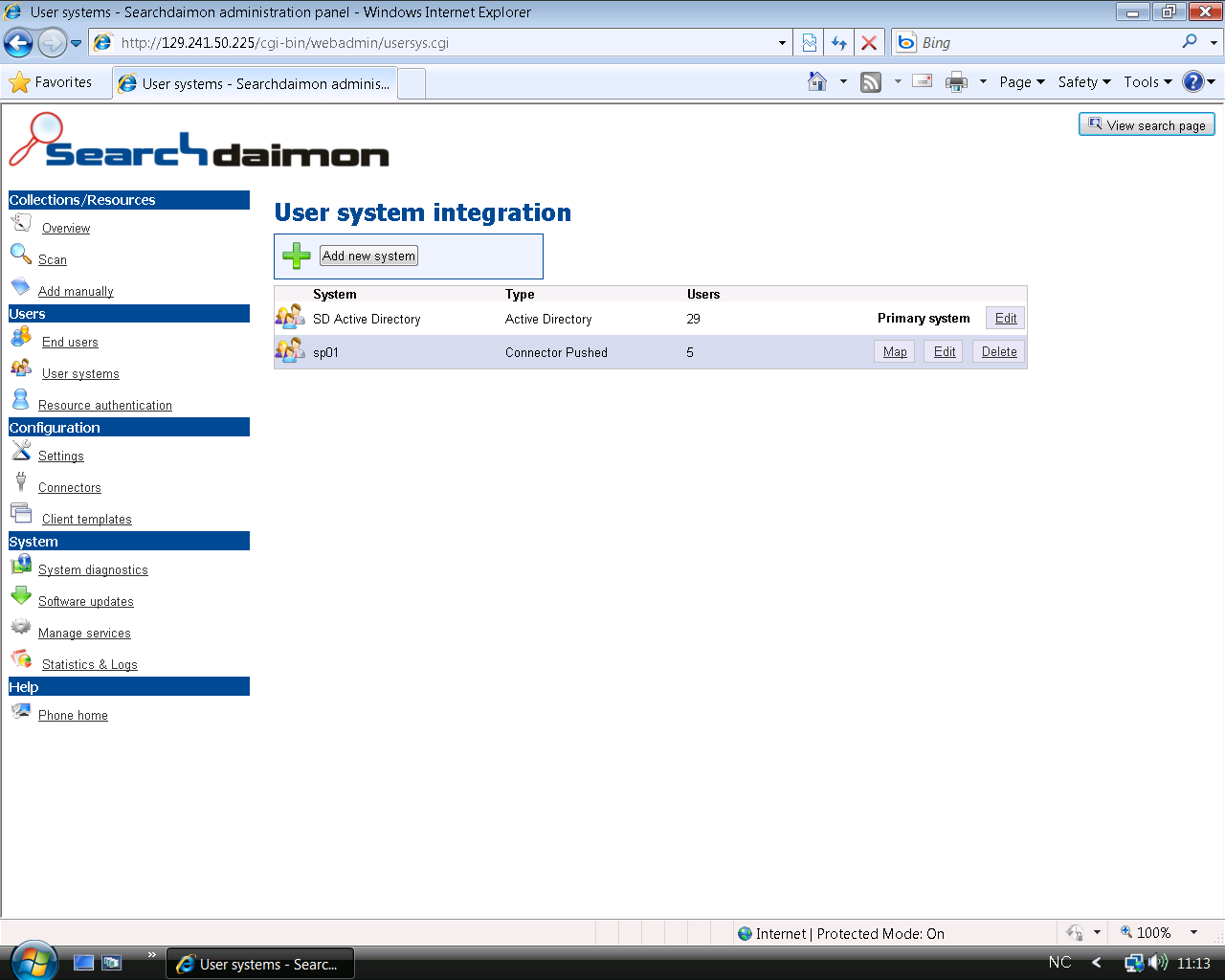
Click to enlarge.
To run Searchdaimon ES, you need at least a primary user system. Many companies already run Microsoft Active Directory. It is also possible to install secondary user systems, and map their users to the primary system.
Settings
Configuration -> Settings
Back
Main settings
Click to enlarge.
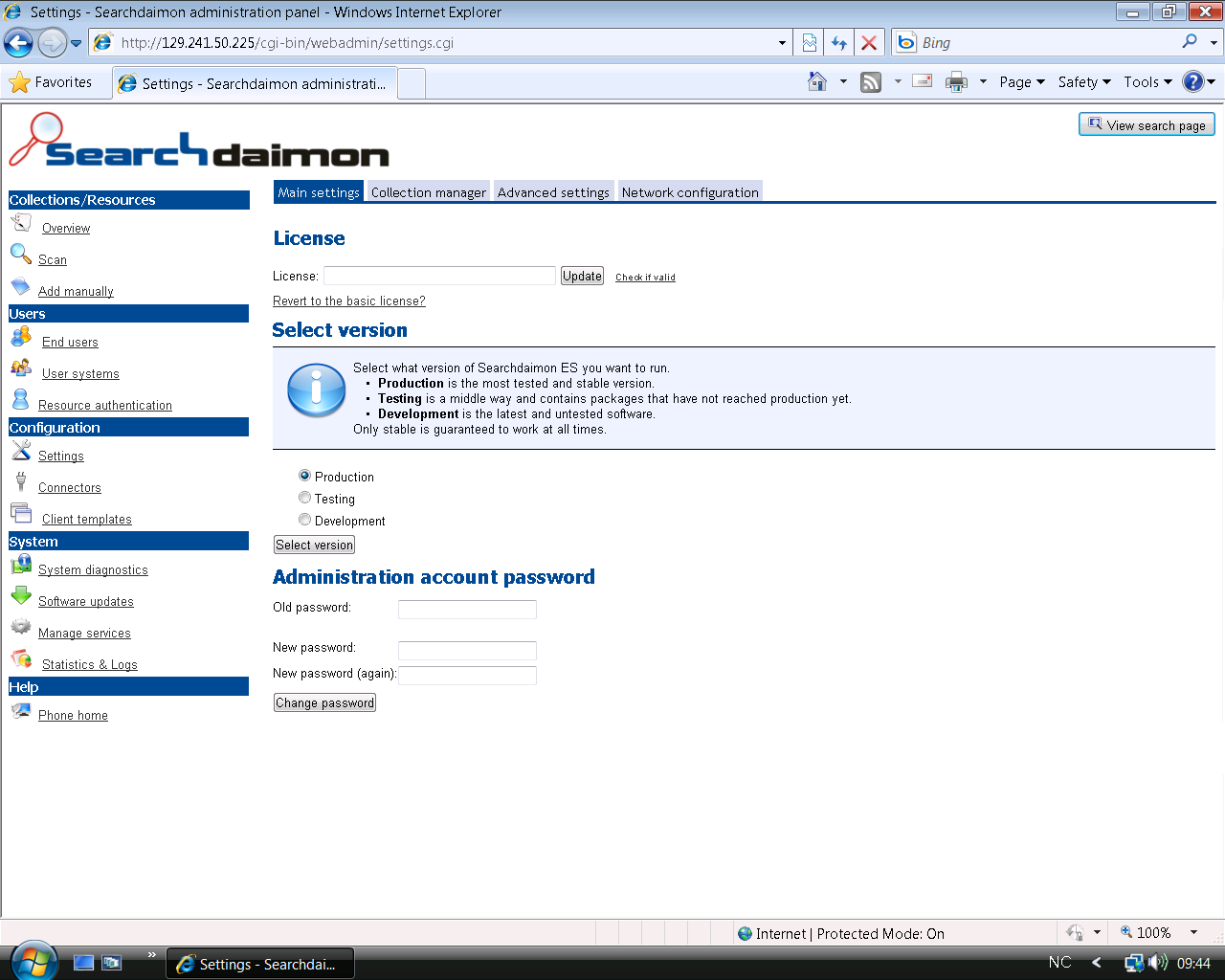
In the Main settings tab, you can change license or administrator password. It is recommended to run the production version of Searchdaimon ES, but it is also possible to run the testing version. The development version is available by agreement only.
Collection manager
Click to enlarge.
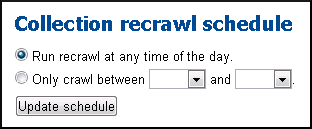
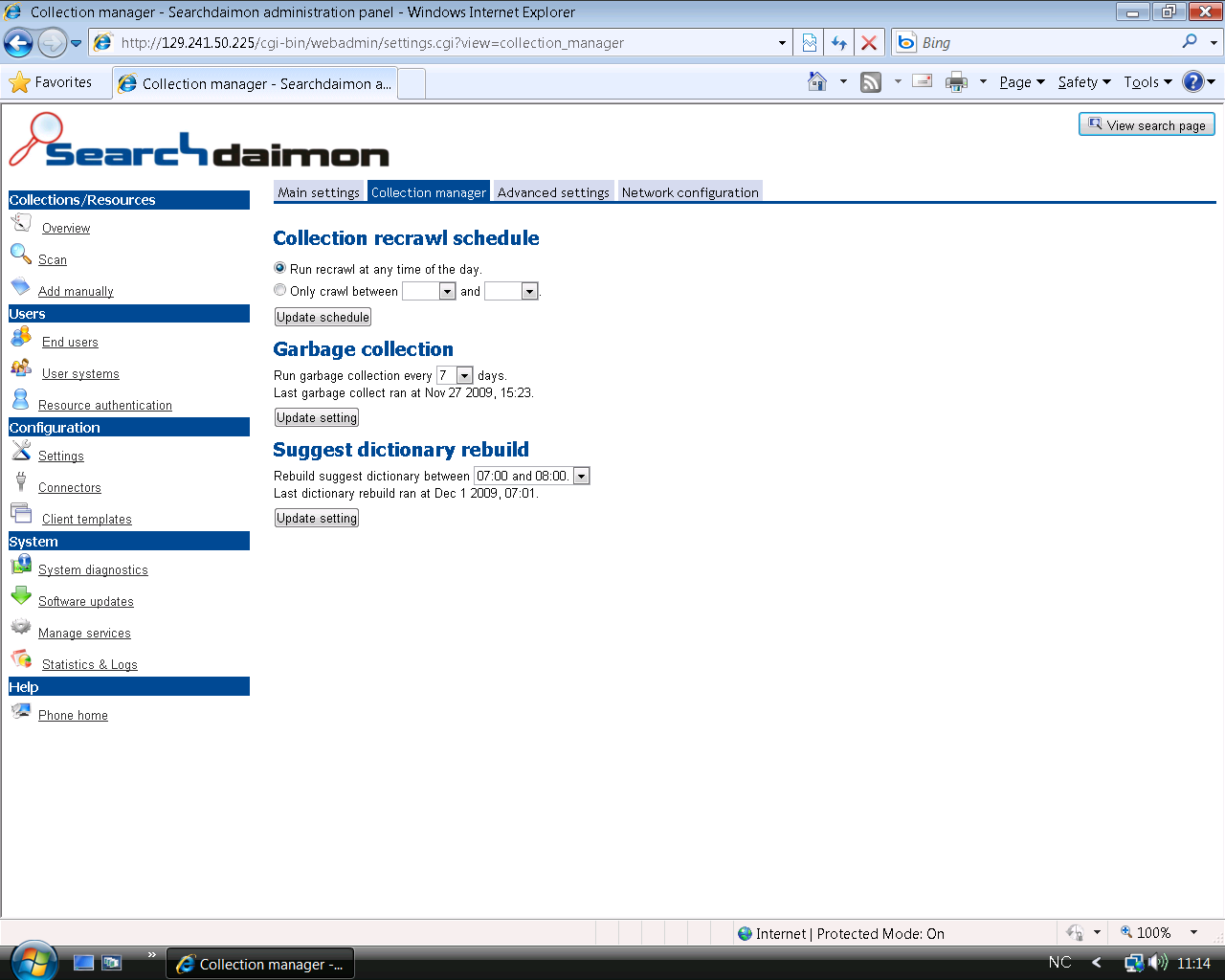
Crawling and recrawling can take up a lot of resources. Every collection is scanned for new content. This means that every file on your server is checked for changes, new e-mail gets downloaded, and other content is scanned for updates. This can slow down performance of your content servers while crawling is active. If this is an issue for you, we recommend limiting crawling to nighttime.
Advanced settings
Click to enlarge.
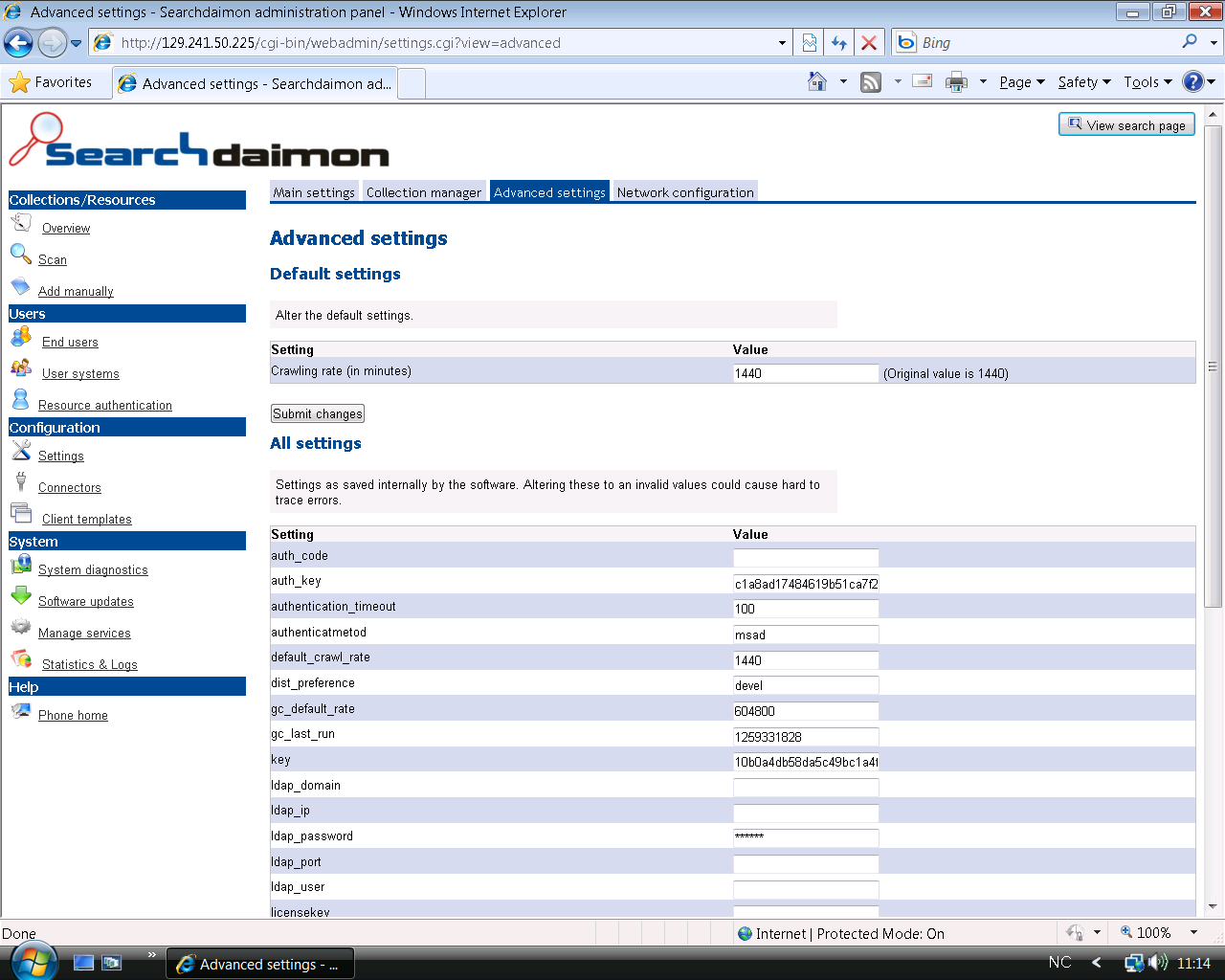
These are values used internally in the search engine. Do not make changes here unless you know what you are doing.
Network configuration
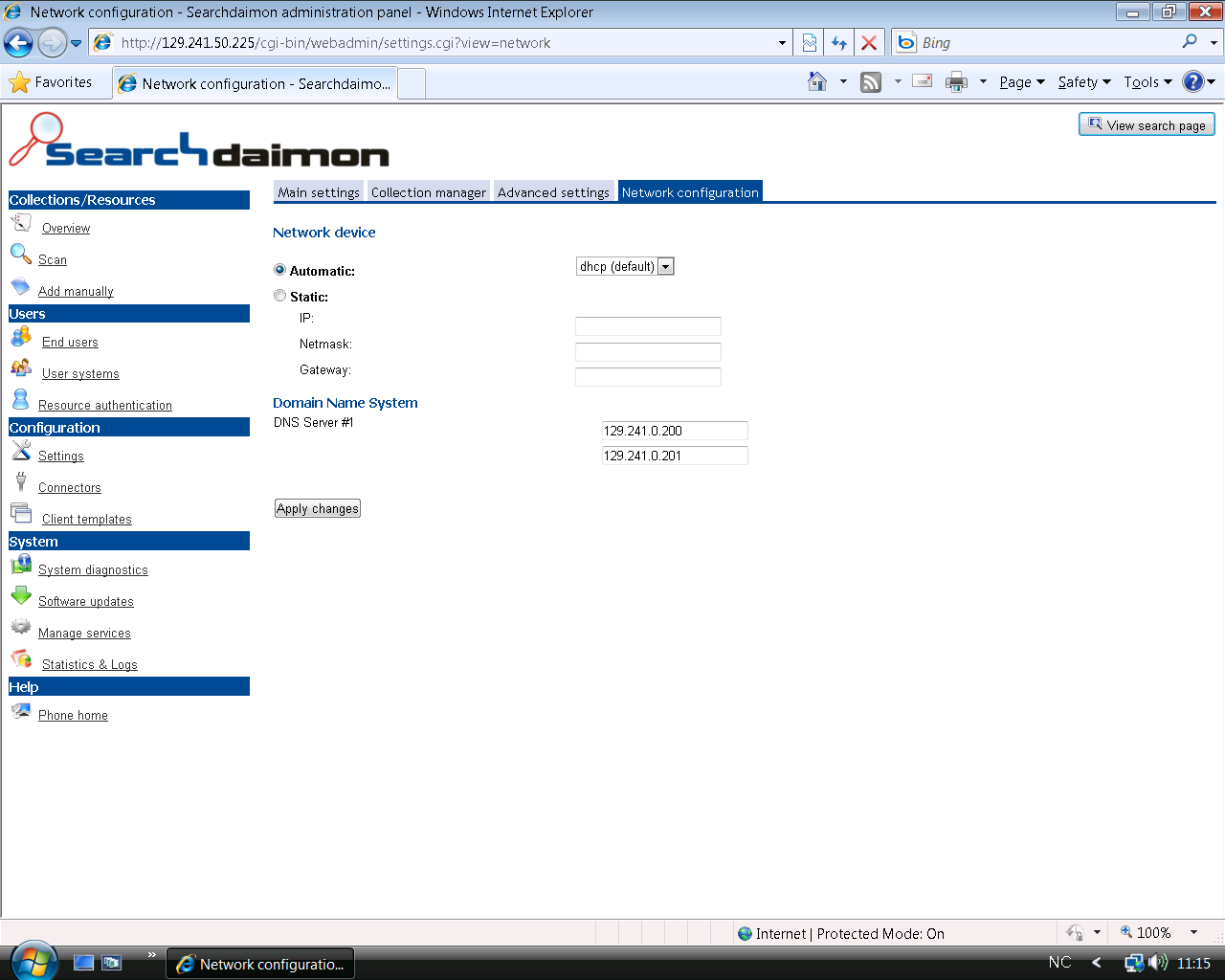
Click to enlarge.
In this tab you can change the servers network settings.
Statistics & logs
System -> Statistics & Logs
Back
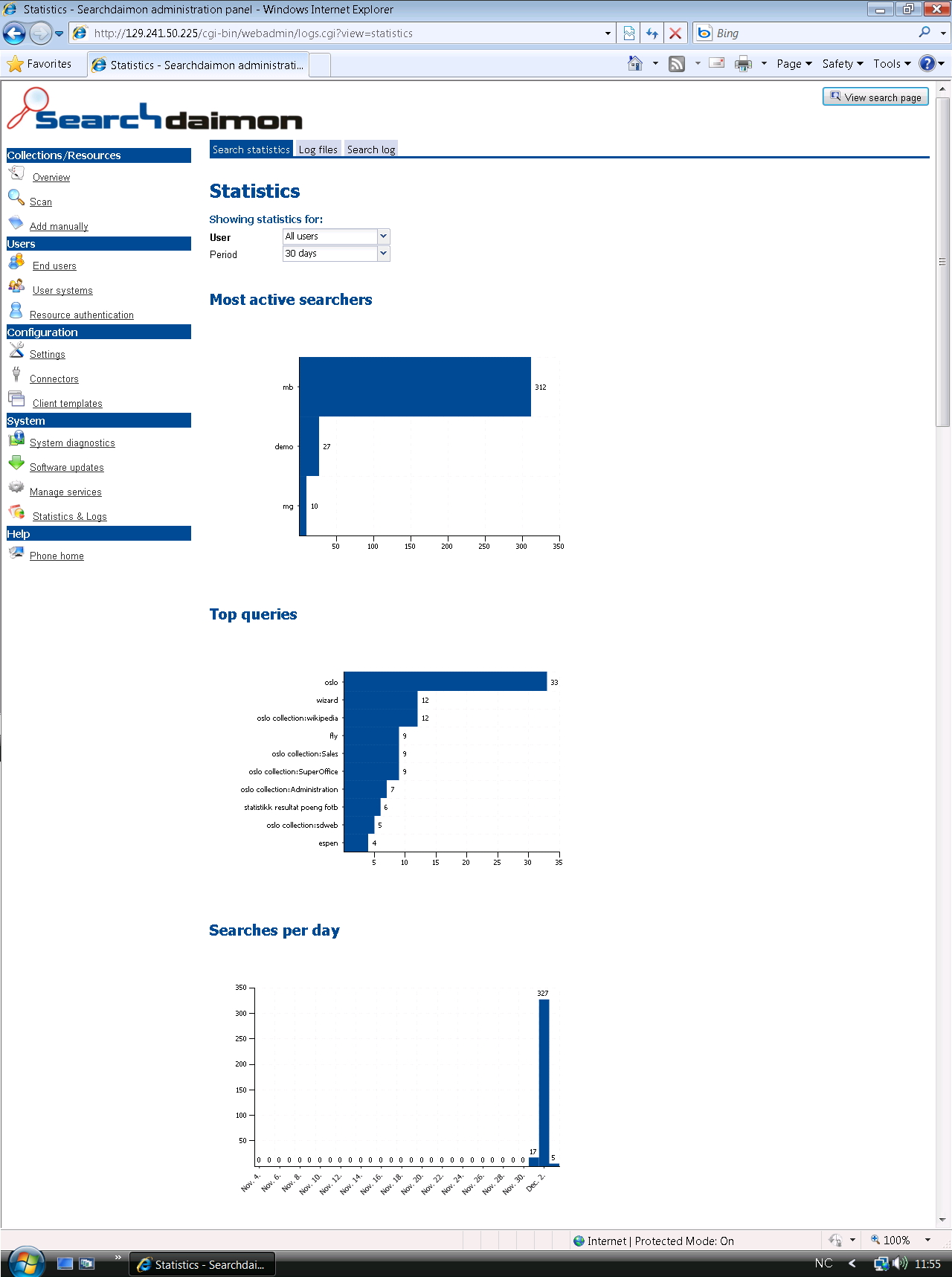
Click to enlarge.
You can see which users are the most active, what the most popular queries are, and how many searches are performed every day.
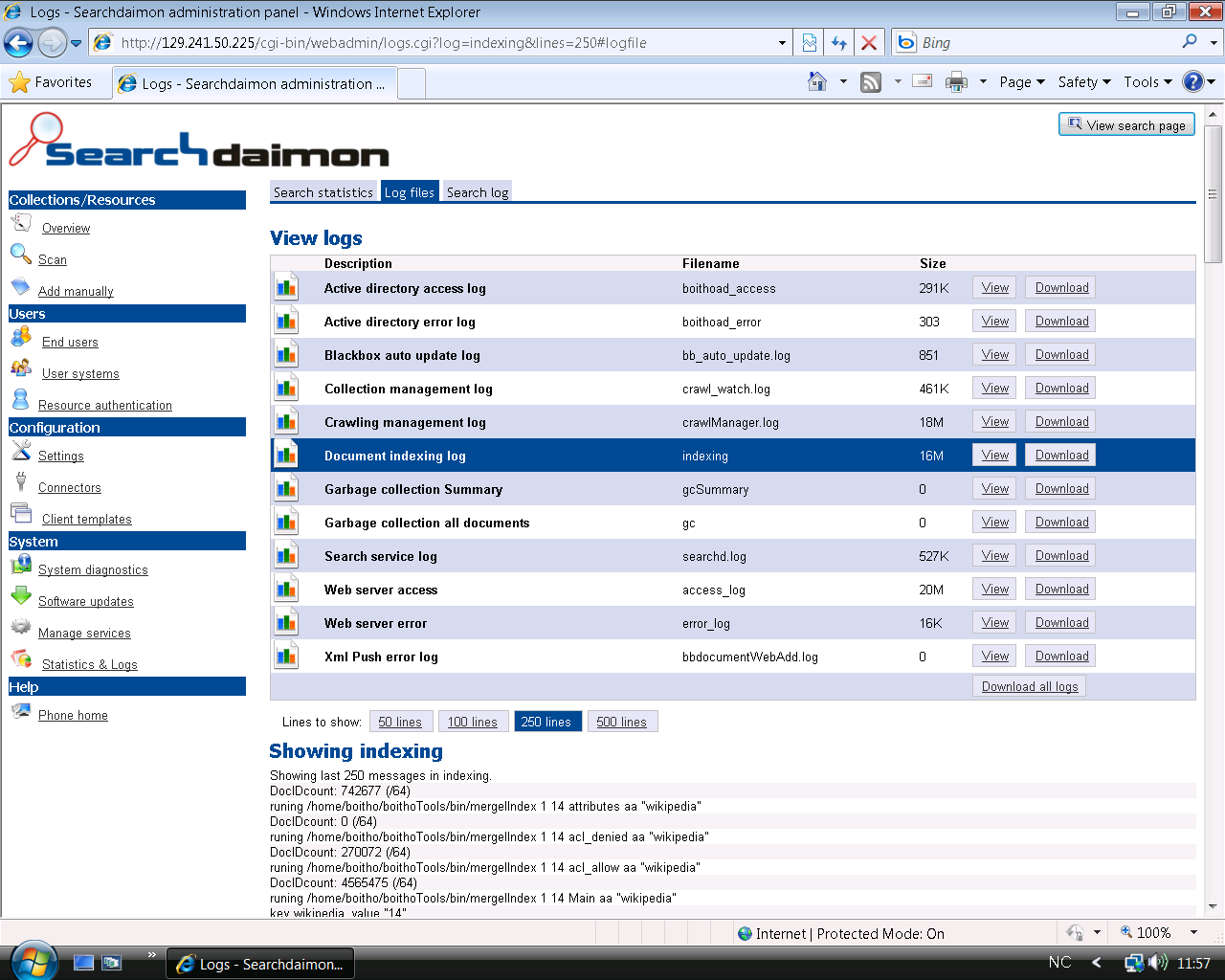
Click to enlarge.
These are log files for running processes, and are meant for debugging.
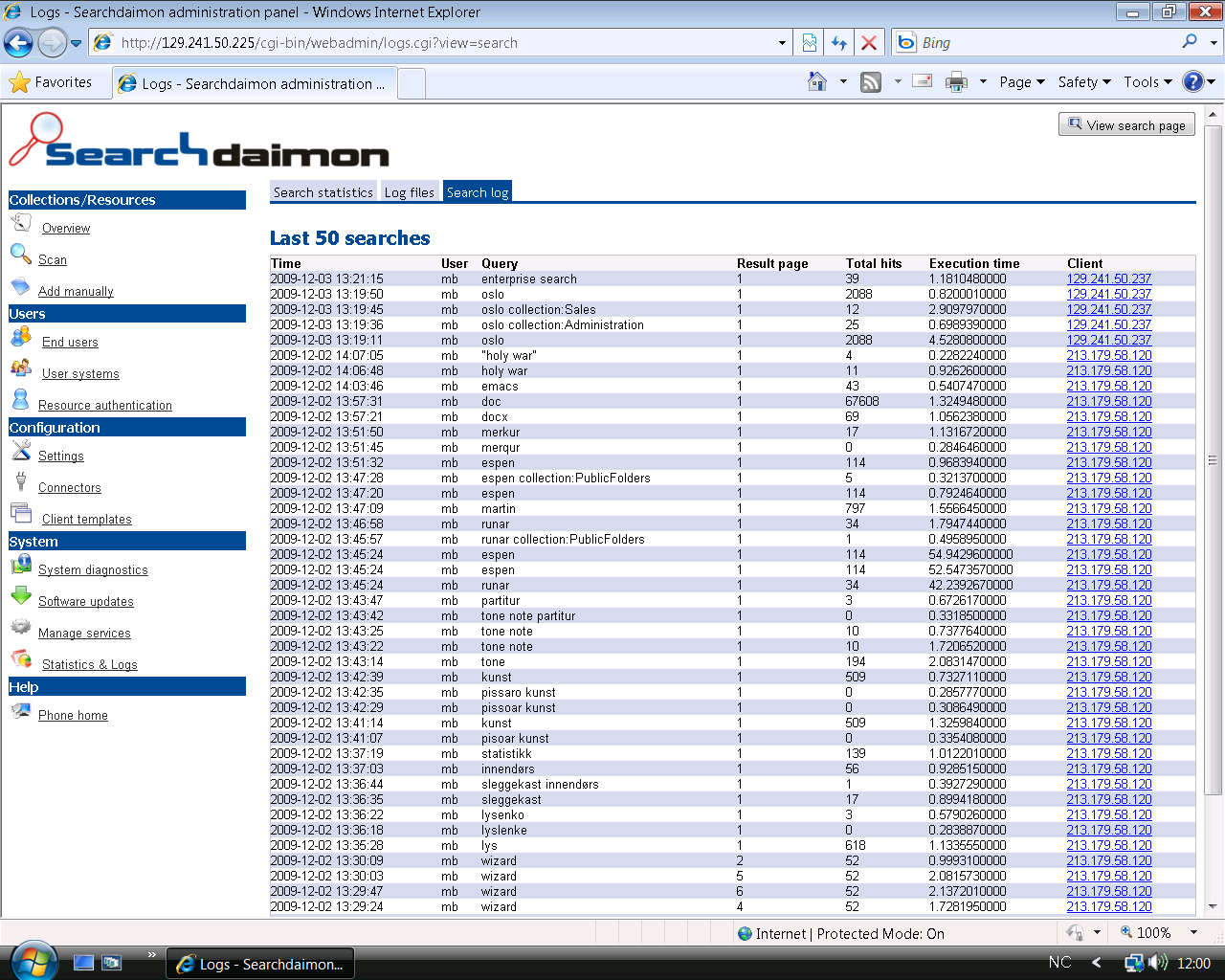
Click to enlarge.
The query log shows the last 50 searches.
Phone home
Help -> Phone home
Back
Phone home enable you to active an encrypted SSH connection back to Searchdaimon so we can log on to your ES remotely and help with any issues.
Using the phone home function can often shorten down the time needed to resolve an issue because Searchdaimon personnel can view the problem with their own eyes, instead of relying on complex issues going back and forth over phone or email. It is off by default, and requires you to invite us for each session.
Enable phone home from the administrator interface by going to "Phone home" and click on the start pone home service button.
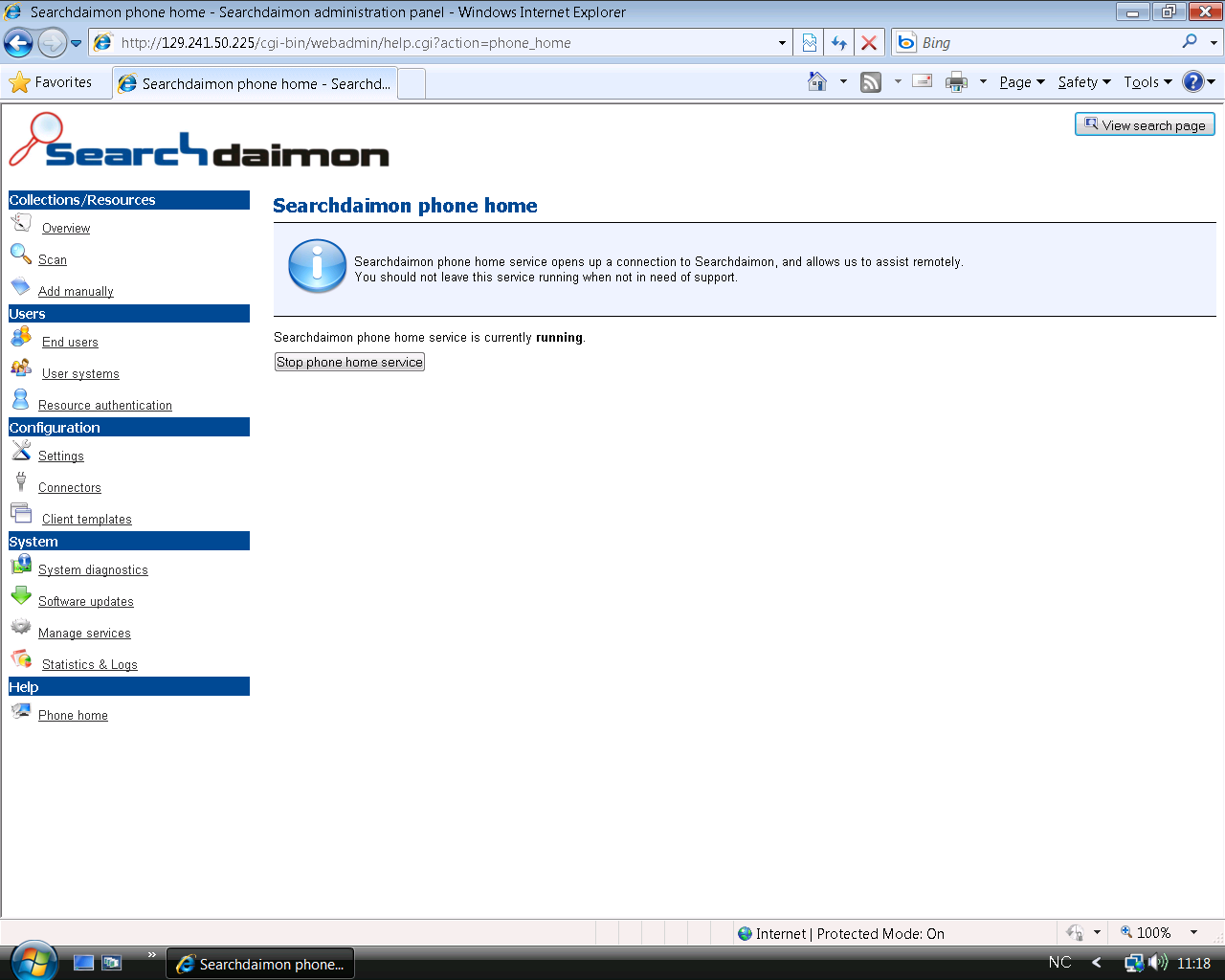
Click to enlarge.
If you have an external firewall you may have to open up for phone home, as descried in the Configure an external firewall.