

Getting started
To log on, enter the IP-address of Searchdaimon ES (http://{IP-address}/) in your favorite browser. The address can be obtained from your system administrator.
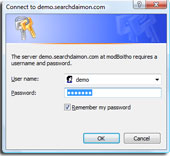
Your username and password should be the same as when logging on to your computer.
Tip: Adding this IP to trusted sites in Internet Explorer enables you to open MS Office documents in MS Office when clicking on them in your browser.
Searching
Searching is of course the most important aspect of ES. Start by writing one or more words that define what you are looking for. You can then drill down with filters and sorting.
- Typing '-' in front of a word, will remove all documents containing this word.
- Inflections are added automatically.
- Adding '"' before and after a word or a sentence will search for the exact sentence.
- Adding '|' befor a word means OR. For example apple |oranges gives bout documents containing apples or oranges.
Filtering and sorting
You can restrict your search to type of document, data source, date and meta-information such as contacts, customers, sales and projects. You can also sort on date or relevancy.

In the above picture, you can see the results of the query "enterprise search". The search has been further broken down to only include documents from the "Sales" collection. You can also filter the search to only include documents from a file type like Excel or PowerPoint, or from a date interval like this year or older than two years.
Collections
Collections are sources of documents. This might be shared files, your e-mail, or a CRM-system. Collections will appear as tabs in the search result. Clicking on a tab will filter out all other collections.
Suggest
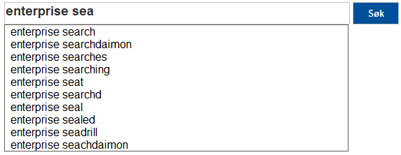
Searchdaimon ES suggests query words while you are writing. The words proposed are fetched from documents the user has access to, so that domain and product names, which you can't find in traditional dictionaries, are included.
Spell checking
The ES can propose correctly spelled words if you have misspelled a word. As for Suggest, the dictionary is built from indexed documents.

Inflections and stemming
Searching for "car" also shows documents containing "cars", etc.
